
Introduction
There’s nothing more frustrating than a wired keyboard that suddenly refuses to work. This interruption not only hampers productivity but can also be perplexing. However, most keyboard issues stem from manageable causes such as connection problems, driver issues, or incorrect settings. By understanding these potential issues, you can troubleshoot effectively, saving time and stress. This guide covers common reasons and solutions for a non-functional wired keyboard to restore functionality efficiently.

Check Physical Connections and Damage
The first step in troubleshooting a malfunctioning wired keyboard is to check physical connections, as they are often the root cause of the problem.
-
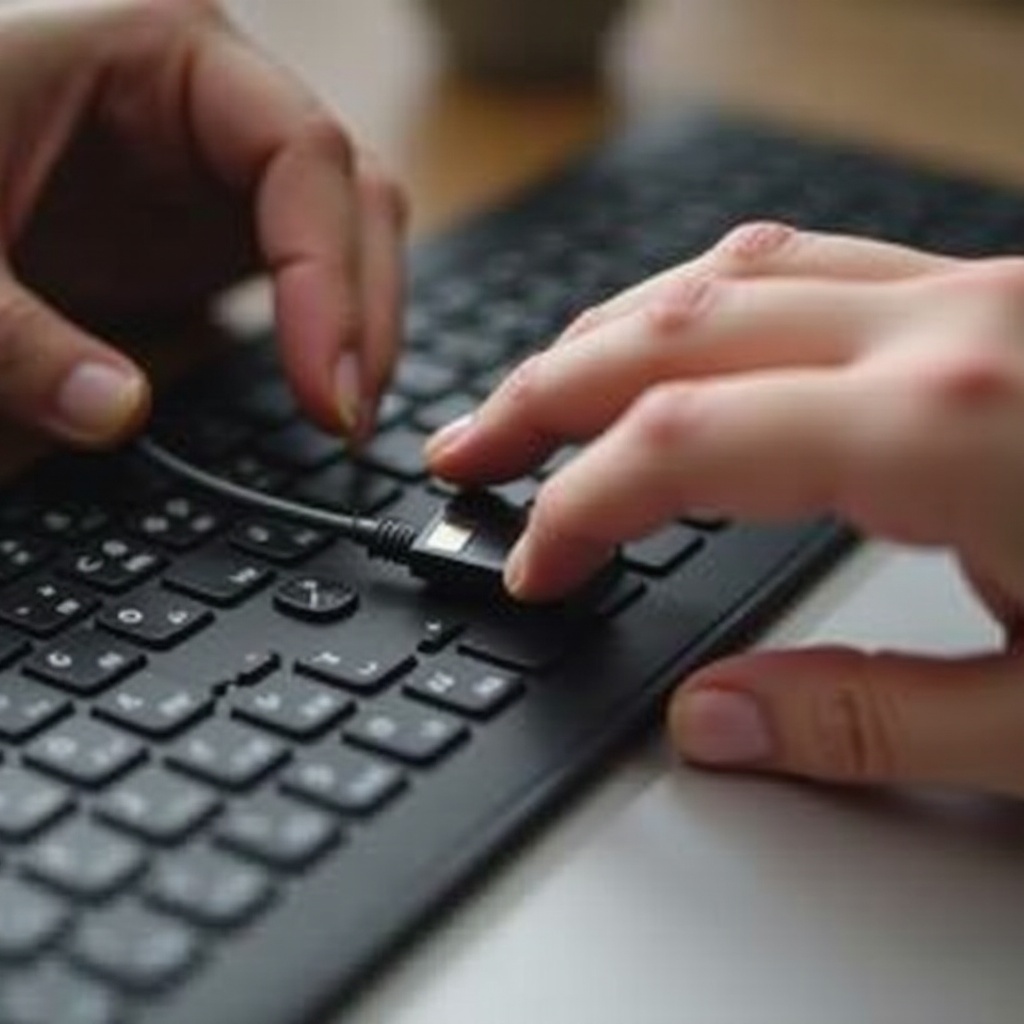
Check the Cable: Ensure the keyboard cable is firmly connected to the computer. Loose cables can easily result in an unresponsive keyboard.
-
Inspect for Damage: Look for visible signs of damage on the cable. Damaged cables may disrupt data transmission, leading to malfunctioning keys.
-
Unplug and Re-plug: Disconnect the keyboard and then reconnect it to your computer. This simple action can often resolve connection problems.
Before examining your power sources and USB ports, thoroughly check the connections to rule them out as the issue’s cause. Such a preliminary check can often save you from extensive troubleshooting.
Verify Power Sources and USB Ports
For your keyboard to function correctly, reliable power transmission via USB ports is crucial.
-
Test Different USB Ports: Switch the plugged-in port to see if it resolves the issue. Different ports may have varying power levels.
-
USB Hub Concerns: Avoid using a USB hub if possible. Directly connect the keyboard to your computer’s USB port, as hubs might supply insufficient power.
-
Clean USB Ports: Dust accumulation can impair connectivity. Gently clean USB ports using compressed air.
If the keyboard remains unresponsive after ensuring the ports function correctly, move on to addressing potential driver or system setting issues.
Update or Reinstall Keyboard Drivers
Keyboard drivers play a crucial role in how the hardware interacts with your computer’s operating system. Outdated or corrupt drivers can severely affect functionality.
-
Access Device Manager: To identify potential driver issues, open ‘Device Manager’. Look for warning symbols next to the keyboard driver.
-
Update the Driver: Right-click the driver, select ‘Update driver’, and opt for automatic search for updates.
-
Reinstall the Driver: If an update doesn’t work, uninstall the problematic driver and restart the computer. This process prompts automatic reinstallation of suitable drivers.
Keeping drivers updated is essential for preventing many hardware-related issues. Should driver adjustments not suffice, inspecting keyboard settings is the next step.
Adjust Keyboard Settings and System Configurations
Sometimes, the issue may not be with the keyboard itself but rather incorrect system settings.
-
Review Keyboard Settings: Check that unnecessary accessibility features aren’t enabled within control panel keyboard settings, as they might affect functionality.
-
Language Settings: Ensure your language settings align with the intended keyboard layout, as mismatches can confuse users.
-
Perform a System Restart: Restarting your system can resolve temporary glitches that may interfere with keyboard operations.
If adjusting system settings has no effect, testing the keyboard’s functionality on another device can pinpoint hardware-related concerns.
Test on Another Device for Hardware Issues
To narrow down the source of the problem—whether it’s your keyboard or computer settings—testing the keyboard on another computer is useful.
-
Connect to Another Computer: Attach the keyboard to a different device. If it operates normally, the original computer might have underlying issues.
-
Test with Another Keyboard: Alternatively, connect a different keyboard to your initial computer setup. This helps determine whether the fault lies with the keyboard or your computer’s specific settings.
This testing method provides valuable insights, helping you reach more informed conclusions about the necessary repairs or replacements. Advanced troubleshooting is the next step for persistent issues.
Advanced Troubleshooting Techniques
Should basic measures fail, consider deeper troubleshooting tactics to pinpoint the issue.
-
System Restore: Revert your computer to a point when the keyboard was operational. Doing this can correct problems caused by recent changes or updates.
-
BIOS and Firmware Updates: Critical updates to your BIOS or firmware could rectify communication barriers affecting hardware components. Refer to your computer manufacturer’s guide for directions.
-
Seek Professional Assistance: If all efforts prove unsuccessful, professional maintenance might be needed. Hidden electrical faults or internal damages may not be easily identified by user inspection.
Advanced methods can resolve intricate issues, allowing for continued keyboard use instead of resorting to a replacement.

Conclusion
When a wired keyboard fails, it can disrupt your workflow significantly. However, pinpointing whether the problem is due to connection issues, driver discrepancies, or setting misconfigurations can lead to hassle-free solutions. If these steps do not resolve the issue, equipment replacement or professional assistance might be essential to prevent further inconvenience.
Frequently Asked Questions
Why does my keyboard stop working after a while?
Intermittent keyboard functionality may result from overheating, excessive power consumption by other USB devices, or faulty wiring. Ensure proper ventilation and power distribution.
Can a virus cause my wired keyboard to malfunction?
Viruses can affect various components of your computer, including keyboard functionality. Regular antivirus scans can prevent or resolve these issues.
Is it better to replace a wired keyboard or repair it?
Replacement is often more cost-effective unless the keyboard is high-end or has sentimental value. Consider repair if the fixes are straightforward and affordable.