
Introduction
The PS5 DualSense controller is an essential part of the gaming experience, thanks to its revolutionary design and features like the built-in speaker. Unfortunately, some users encounter issues where the PS5 controller speaker stops functioning, interrupting gameplay. If you’re facing this problem, don’t worry—there are effective ways to tackle it. This guide will help you understand why this issue occurs and provide detailed instructions to troubleshoot and resolve it. By following this guide, you will not only restore your controller’s speaker functionality but also learn how to keep it in excellent condition for future gaming sessions. Let’s dive into the causes and step-by-step solutions.
Understanding the PS5 Controller Speaker Issue
The PS5 controller speaker provides immersive audio feedback, enhancing the gaming experience. When it fails, players lose vital gameplay sounds, affecting overall enjoyment. Recognizing the problem is crucial to finding a solution. Several factors, both software and hardware-related, can lead to the speaker not working. Before assuming a defect, it’s important to realize that simple adjustments might rectify the issue. This awareness is pivotal in applying effective solutions, ensuring your gaming experience returns to optimum performance.
Common Causes Behind a Non-Functional Speaker
A non-working PS5 controller speaker can be due to multiple reasons, and pinpointing the cause is vital for applying the right fix.
- Muted or Low Volume Settings: The most common reason is the volume being too low or muted, adjustable in the system settings.
- Software Glitches: Like any device, the PS5 may suffer temporary software glitches affecting peripherals, including the speaker.
- Physical Damage: Dropping or impacting the controller could harm internal components like the speaker.
- Dust and Debris: Dust accumulation may obstruct the speaker, causing sound issues.
- Battery Issues: A low or depleted battery can lead to the speaker cutting out or not functioning.
- Firmware Mismatches: Outdated firmware, either in the controller or console, might cause compatibility problems affecting the speaker.
Understanding these causes lays the foundation for troubleshooting steps that often don’t require technical expertise.
Basic Troubleshooting Steps
Before deciding on buying a new controller, try these basic troubleshooting methods:
- Check Volume Settings: Navigate to PS5 settings, go to “Devices,” and ensure the controller volume is up and not muted.
- Restart Your Console: A simple restart often resolves temporary glitches.
- Reconnect the Controller: Disconnect and then reconnect your controller to the console.
- Charge the Controller: Plug it into a power source to ensure it’s charged fully.
- Dusting Off: Clean dust or debris from around the speaker using compressed air.
If these basic steps don’t solve the problem, you may need to undertake advanced troubleshooting.
Advanced Troubleshooting Techniques
For those comfortable with technical solutions, these advanced steps may help if basic attempts fall short:
- Update the Controller Firmware: Make sure both the PS5 system and controller firmware are up to date. Navigate to Settings > System Software > Update.
- Reset the Controller: Use a pin to press the reset button on the back of the controller, then reconnect it to the console.
- Test with Another Device: Link your controller to another PS5 or a PC to determine if the speaker works, helping to identify console-specific issues.
- Factory Reset the PS5: As a last resort, back up your data and restore the PS5 to factory settings to remove corrupted settings or data.
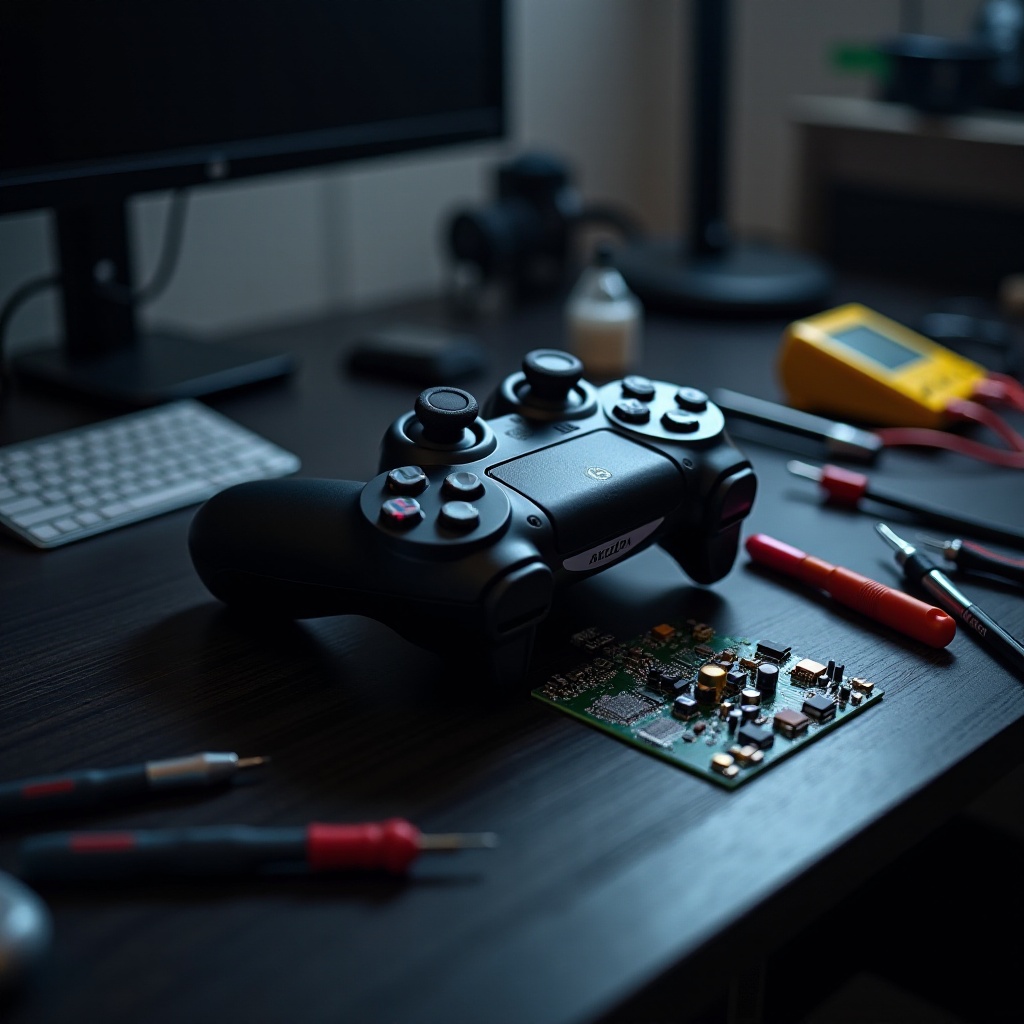
- Inspect for Hardware Damage: If you suspect damage, consider opening the controller (if confident) or seek professional repair services.
While these troubleshooting tips cover various issues, it’s crucial to know when to seek additional help.
When to Contact PlayStation Support
If all the previous steps fail to restore your PS5 controller speaker’s functionality, it may be time to contact PlayStation Support. Exploring warranty options or professional repair services is advisable. Support can offer diagnostics and tailored solutions. Have your purchase receipt ready and be informed about warranty terms to pursue available options.
Preventative Measures to Avoid Future Issues
To maintain your PS5 controller speaker’s performance, consider these preventative measures:
- Regular Cleaning: Use a dry microfiber cloth and compressed air to clean the controller regularly, keeping dust at bay.
- Firmware Updates: Continuously update PS5 and controller firmware to prevent compatibility issues.
- Handle with Care: Protect the controller from drops or mishandling, safeguarding it from physical damage.
- Battery Maintenance: Ensure the controller is sufficiently charged and avoid completely depleting the battery.
By integrating these practices, you minimize the risk of future speaker issues.
Conclusion
A PS5 controller speaker not working can disrupt your gaming, but it’s usually fixable with straightforward troubleshooting. Understanding the potential causes and using both basic and advanced solutions effectively can restore functionality quickly. If these don’t work, PlayStation Support can offer additional help. Proper upkeep of your controller will ensure you continue enjoying immersive audio in your gaming adventures.
Frequently Asked Questions
Why is my PS5 controller speaker not working despite resetting it?
Resetting doesn’t always fix hardware issues or severe software problems. Consider checking for updates or consulting support.
Can a software update fix my PS5 controller speaker issue?
Yes, often software updates resolve bugs that might affect peripheral performance, including speakers.
How do I know if my PS5 controller speaker problem is hardware-related?
Testing the controller with another device or inspecting for visible damage can help determine if the issue is hardware-related.