
Introduction
In today’s world, Bluetooth has become an ubiquitous way to connect our devices wirelessly. Whether you’re connecting wireless headphones, keyboards, or transferring files, Bluetooth provides a convenient solution without the tangle of cables. However, if your computer doesn’t support Bluetooth, this guide will show you how to enable it, whether your machine already has it or you need to add it.
Checking for Built-in Bluetooth Capability
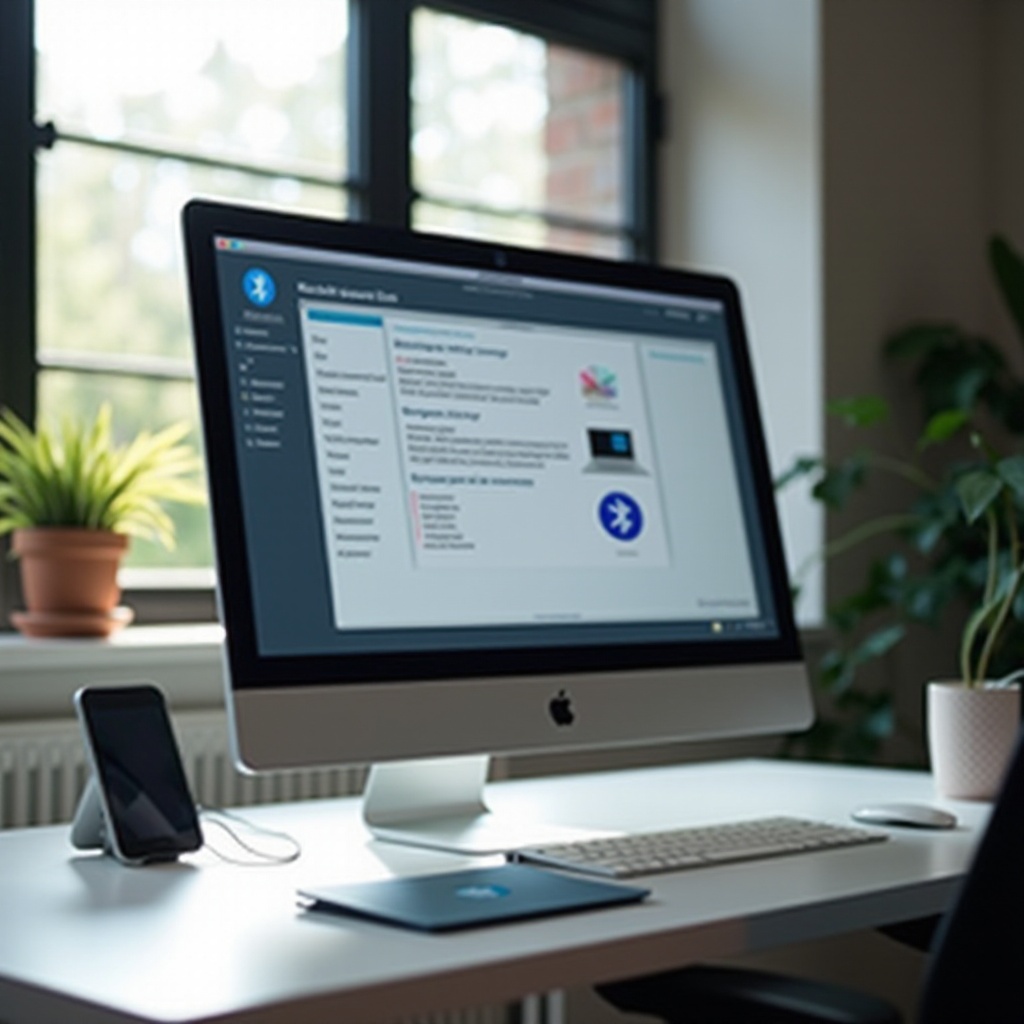
The first step to harnessing Bluetooth is to determine if your computer already has the capability built-in. Conducting this initial check can save time and ensure that you don’t duplicate efforts unnecessarily.
How to Check on Windows Computers
To check for Bluetooth on a Windows system:
- Open ‘Device Manager’ by right-clicking ‘Start’ and selecting it.
- Look for the ‘Bluetooth’ section.
- If available, you have built-in Bluetooth.
- Alternatively, navigate to ‘Settings’ > ‘Devices’ and check for the ‘Bluetooth & other devices’ option.
How to Check on Mac Computers
For Mac users:
- Open the Apple menu and select ‘About This Mac.
- Choose ‘System Report’ and then ‘Bluetooth.
- If you see Bluetooth hardware details, then it’s built-in.
Having detected whether your computer has Bluetooth, let’s delve into the options when it’s not available.
Installing Bluetooth Hardware
Should you find your machine lacks built-in Bluetooth, installing additional hardware is essential. Here we explore options tailored to both laptop and desktop users to ensure an optimal solution.
Choosing the Right USB Bluetooth Adapter
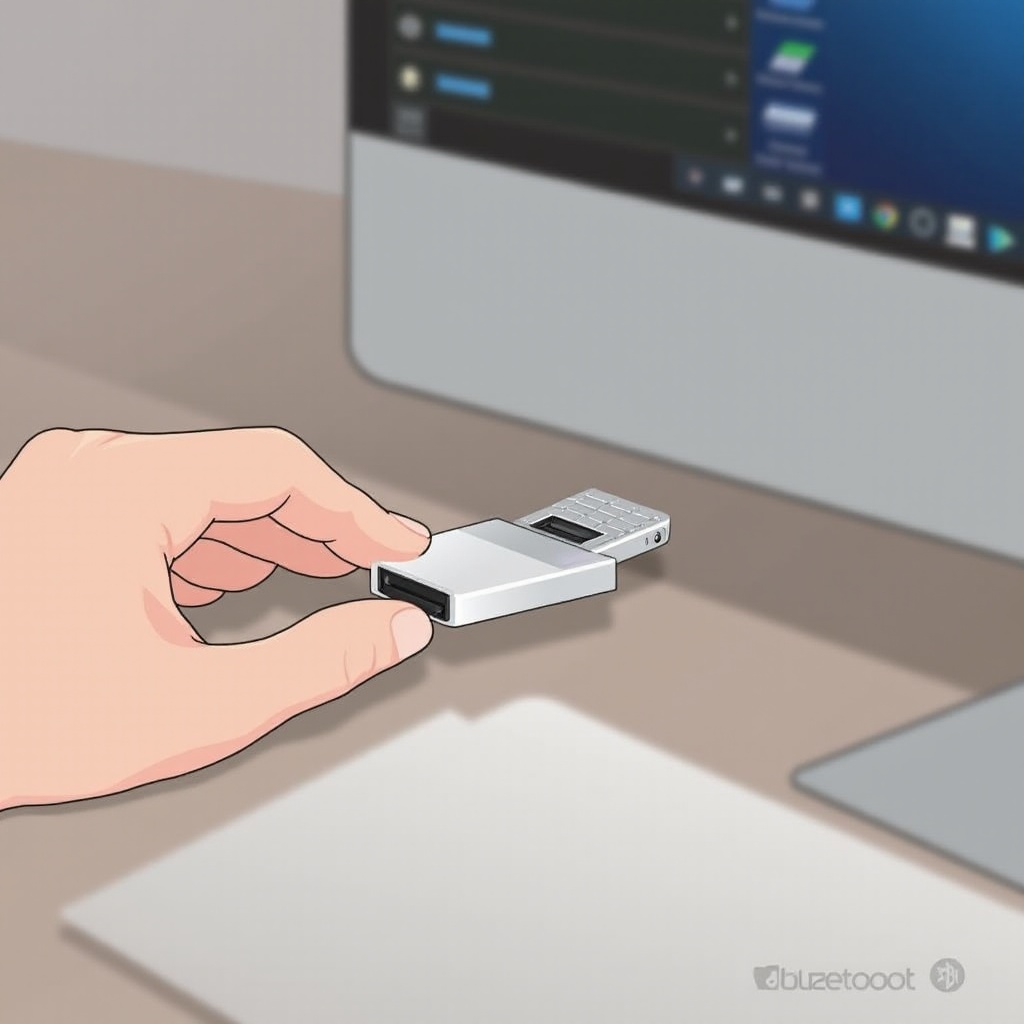
Most users find USB Bluetooth adapters the simplest way to add functionality:
- Compatibility: Ensure the adapter works with your operating system.
- Bluetooth Version: Choose the latest version for enhanced features.
- Reputation: Opt for credible brands with positive reviews.
After securing an adapter, plug it into a free USB port to start using Bluetooth.
Internal Bluetooth Upgrades for Desktops
Desktop users preferring an integrated approach should consider these steps:
- Identify compatible Bluetooth cards for your motherboard.
- Open your desktop’s case and find an open PCIe slot.
- Insert the Bluetooth card securely following the manufacturer’s instructions.
Let’s now discuss the essential step of driver installation to utilize the newly added hardware.
Installing and Updating Bluetooth Drivers
With your hardware in place, ensuring that drivers are installed and updated is the next crucial step. This ensures seamless communication between your computer and Bluetooth devices.
Finding and Installing Drivers on Windows
- Go to ‘Device Manager’ and right-click your Bluetooth device.
- Select ‘Update Driver’ and choose ‘Search automatically for updated driver software.
- Follow on-screen instructions to install updates from Windows Update or the manufacturer’s site.
Finding and Installing Drivers on Mac
On Mac systems:
- Open ‘System Preferences.
- Select ‘Software Update’ and install any updates.
- Restart your computer to complete the update process.
With drivers updated, enabling Bluetooth is your final technological hurdle.
Enabling Bluetooth on Your Computer
With all the setup completed, you are just steps away from pairing devices. Here’s how to enable Bluetooth across different operating systems:
Steps for Windows Users
- Open ‘Settings.
- Go to ‘Devices.
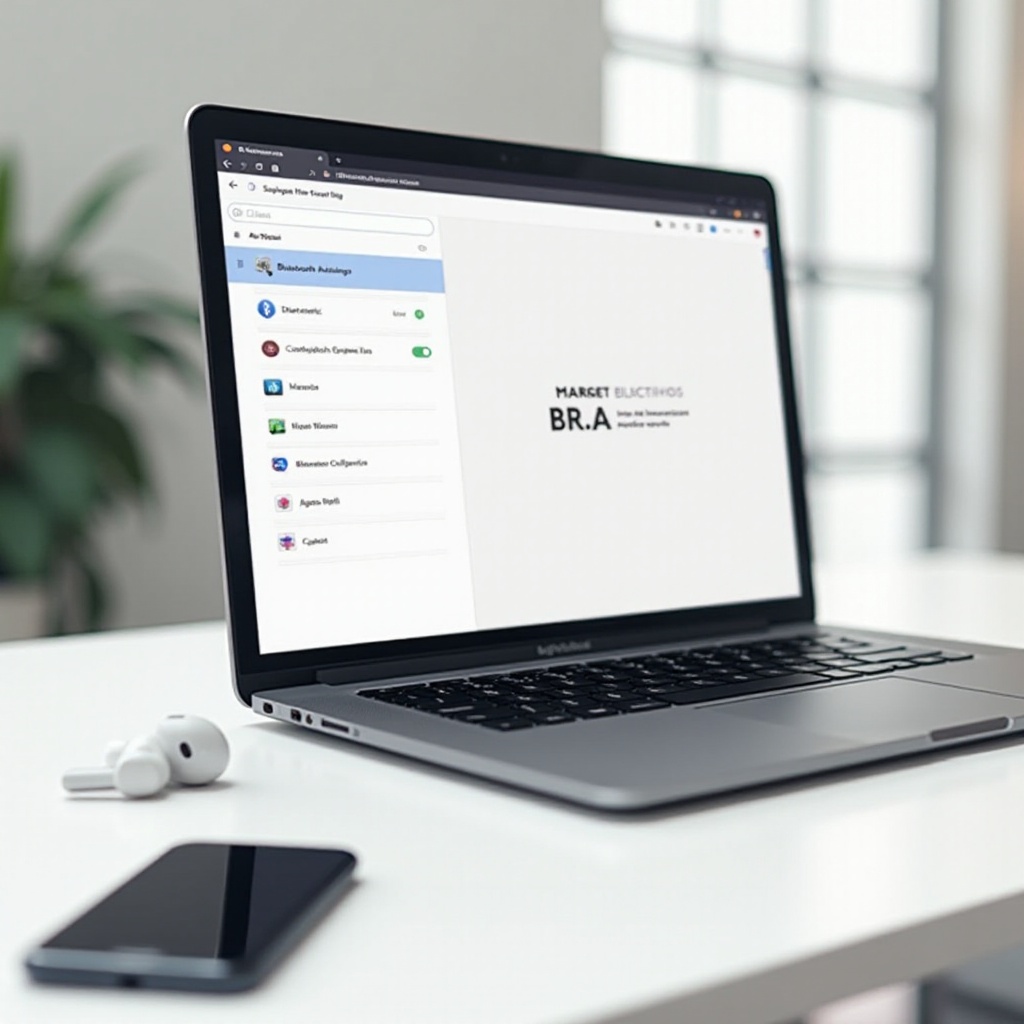
- Click ‘Bluetooth & other devices’ and toggle Bluetooth to ‘On.
Steps for Mac Users
- Access ‘System Preferences.
- Select ‘Bluetooth.
- Ensure the Bluetooth option is switched ‘On.
Now that Bluetooth is enabled let’s explore how you can connect various devices.
Pairing Devices with Your Computer Using Bluetooth
With Bluetooth active, you’re now ready to pair your peripherals effortlessly. This section focuses on common devices you may wish to connect.
Pairing Process for Common Devices
- Headphones or Speakers:
- Put your device in pairing mode.
-
In Bluetooth settings, select your device from the list.
-
Keyboard and Mice:
- Toggle your device’s on/off button to pairing mode.
- From your computer’s Bluetooth settings, choose the device.
These connections should be straightforward, but occasionally, challenges arise.
Troubleshooting Connection Issues
If you face issues,
- Ensure your devices are close to each other.
- Restart both computer and the device.
- Go to Bluetooth settings, remove the device and try reconnecting.
Conclusion
Bluetooth adds immense flexibility to your computer by facilitating wireless connectivity. Whether determining existing capabilities or installing new hardware, the process is manageable. By following these steps, you’ll enjoy seamless connectivity with numerous Bluetooth-enabled devices, enhancing your computing experience.
Frequently Asked Questions
What should I do if my computer doesn’t detect the Bluetooth adapter?
Ensure the adapter is secured correctly, try different USB ports, and update drivers. Restart the computer and check for compatibility.
Can all computers be upgraded to support Bluetooth?
Most computers can use USB adapters for Bluetooth; however, internal upgrades depend on hardware compatibility.
How can I improve Bluetooth connectivity?
Ensure devices are in close range, reduce wireless interference, and keep drivers updated to improve connectivity.