
Introduction
For many, combining an Android tablet with a mouse might seem unnecessary, but it can dramatically elevate your productivity and streamline various tasks. Tablets, known for portability and user-friendly capabilities, see their potential maximized with mouse usage. This integration brings precise control and improved workflow, making both leisure and work activities more efficient and enjoyable.
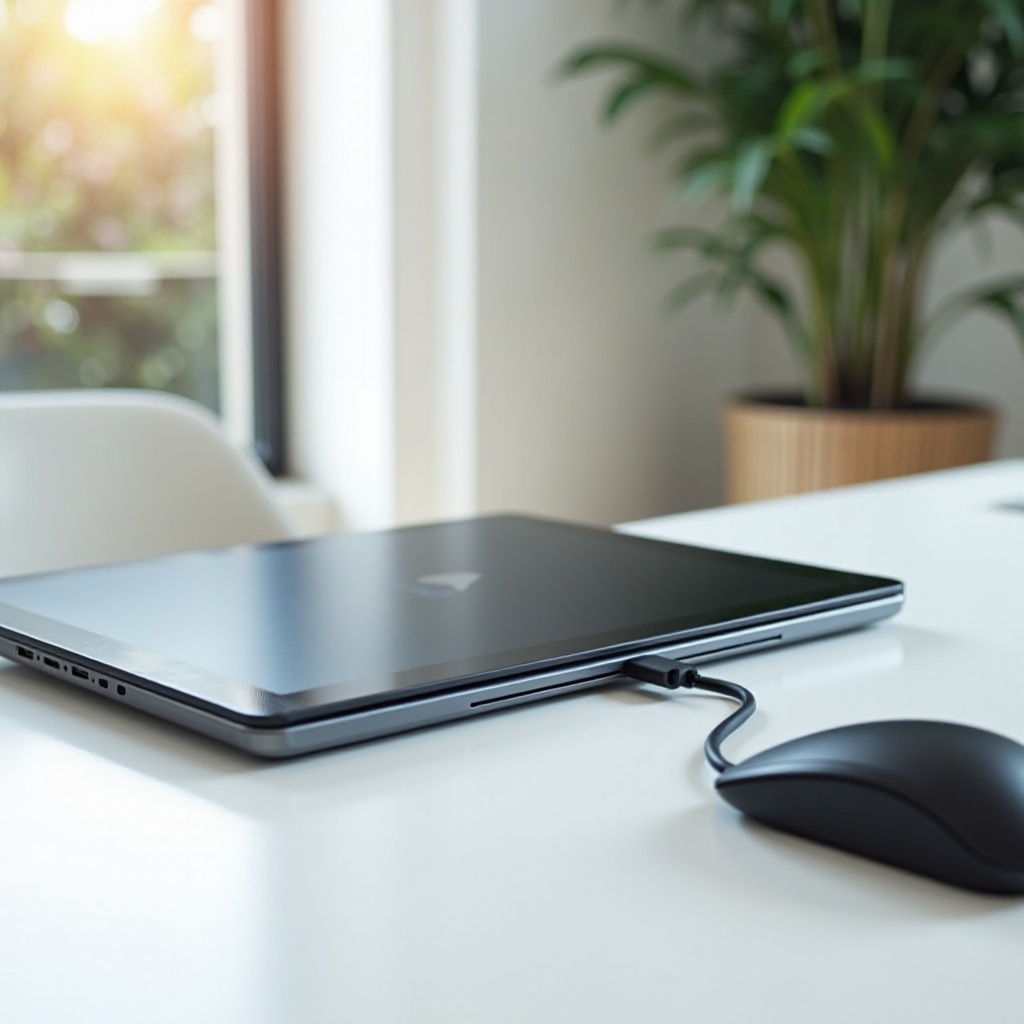
Why Use a Mouse with Your Android Tablet?
The precision and control a mouse offers are unmatched, significantly enhancing navigation on an Android tablet. This is especially useful for tasks that require high accuracy, such as graphic designing or document editing. A mouse allows users to execute clicks and selections smoothly, eliminating the frustration of imprecise finger taps.
Adding a mouse also boosts overall productivity, facilitating smoother multitasking. Professionals can switch between applications seamlessly, manage complex tasks, and handle office duties like presentations or digital note-taking more competently. In essence, a mouse transforms your Android tablet into a versatile powerhouse for various productive endeavors.

Choosing the Right Mouse for Your Android Tablet
Selecting the ideal mouse for your Android tablet is pivotal to ensure an enhanced user experience and maintain compatibility.
-
Bluetooth vs. USB OTG: Key Considerations
Bluetooth mice are generally preferred due to their wireless nature, eliminating the need for cables. However, if your tablet supports USB OTG (On-The-Go), a wired USB mouse might be an option. Evaluate the portability and ease of use that each type offers according to your needs. -
Top Rated Mice for Android Tablets in 2024
In 2024, models like the Logitech Pebble M350 and the Microsoft Modern Mobile Mouse stand out. These options provide robust performance and effortless pairing with Android devices, noted for their ergonomic designs and reliable functionality. -
Ensuring Compatibility and Connectivity
It is crucial to check your tablet’s specifications for compatibility. Ensure that the mouse mentions Android support explicitly and aligns with your device’s Bluetooth version if you opt for a wireless option. Confirming these factors ensures a seamless user experience.
Setting Up Your Android Tablet with a Mouse
After acquiring a compatible mouse, setting it up with your Android tablet is a simple process that enhances usability significantly.
- A Beginner’s Guide to Pairing Your Devices:
- Bluetooth: Turn on Bluetooth on your tablet and mouse, then initiate pairing mode. Your tablet should detect the mouse, allowing you to complete the connection.
-
USB OTG: Attach the mouse to a USB OTG adapter and connect it to your tablet’s USB port.
-
Customizing Mouse Settings for Optimal Performance:
You can tailor your mouse settings for better performance. Adjust the pointer speed and enable enhanced pointer precision from your tablet’s settings menu to find the configuration that suits your workflow. -
Troubleshooting Common Issues:
If you encounter connectivity problems, try restarting your devices, ensuring they are charged, and minimizing interference sources. These steps often resolve common connectivity issues.
Setting up the mouse effectively enhances your tablet interactions, allowing you to handle tasks seamlessly and efficiently.
Apps and Features Enhanced by Mouse Use
The inclusion of a mouse with your Android tablet can significantly augment the functionality of numerous apps:
-
Best Productivity Apps that Support Mouse Input:
Applications such as Microsoft Office and Google Workspace are more manageable with a mouse, facilitating precise text selection, swift navigation, and comprehensive document editing. -
Creative Apps for Design and Drawing:
Design applications like Adobe Photoshop Express and Autodesk Sketchbook thrive with mouse support, providing the precision necessary for detailed artwork and intricate design tasks. -
Efficient Multitasking Features:
Multitasking, including split-screen features and quick app switching, is improved with mouse usage, allowing you to manage various applications effectively and boost productivity.
Incorporating a mouse maximizes the potential of your Android tablet, particularly in managing and executing complex tasks.
Overcoming Challenges with Mouse Usage on Android Tablets
Though using a mouse with your Android tablet has multiple benefits, users might face some challenges:
-
Connectivity Issues and Solutions:
Occasional connectivity lapses can be remedied by ensuring devices are within range, charged, and software is up-to-date. Regular updates often solve unexplained disconnections. -
Maintaining a Portable and Efficient Setup:
Carrying multiple devices can be cumbersome. Opt for compact or foldable mouse options that are easy to transport with your tablet, ensuring your setup remains portable and efficient.
Addressing these potential challenges keeps your tablet setup streamlined, allowing you to enjoy a seamless and productive tablet experience daily.

Conclusion
Incorporating a mouse into your Android tablet setup can genuinely transform the way it functions, enhancing productivity and usability across numerous tasks. By selecting the appropriate mouse and effectively setting it up, you unlock new dimensions for professional and personal tablet uses. Explore these possibilities to turn your Android tablet into a more powerful, versatile tool for daily activities.
Frequently Asked Questions
Can I use any mouse with my Android tablet?
Not all mice are compatible with Android tablets. Ensure the mouse chosen specifies Android support and matches your device’s connectivity options.
What should I do if my mouse won’t connect to my tablet?
Try resetting both devices, ensure they are charged, and check for any necessary software updates. Re-pair the mouse following the original connection process.
Are there specific apps that work best with a mouse on Android tablets?
Productivity apps like Microsoft Office and creative design apps like Adobe Photoshop Express benefit greatly from mouse usage, enhancing efficiency and precision.