
Introduction
The Amazon Firestick remote simplifies entertainment by merging TV controls into one device. Unlock its full potential by reprogramming it to control your TV, providing a streamlined viewing experience. This comprehensive guide will lead you through every step needed for smooth and effective reprogramming.
Understanding the Firestick Remote Basics
Before diving into reprogramming, familiarize yourself with the fundamental features and compatibility of your Firestick remote. Knowing these elements helps ensure a smooth transition during the pairing process.
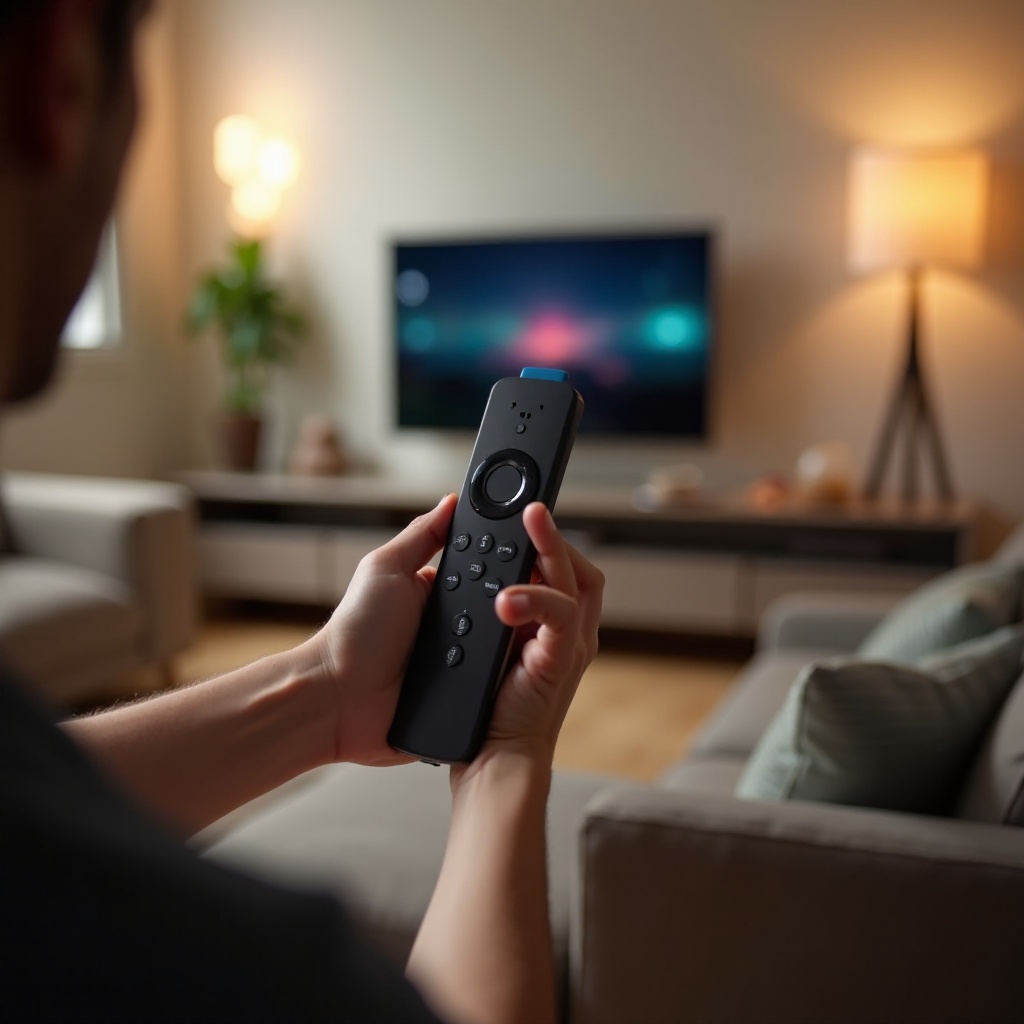
Features of the Firestick Remote: This remote includes volume and power controls, a microphone for voice activation, and quick-access buttons for streaming apps. Understanding these features makes your remote more effective.
Compatibility with TVs and Devices: Confirm the compatibility of your remote with your specific TV brand to avoid pairing issues. This can be done by consulting your TV’s manual or referring to online compatibility lists.
This foundational knowledge prepares you to proceed with confidence into the reprogramming process.
Preparing for Reprogramming
Success in reprogramming your Firestick remote hinges on effective preparation. Follow these initial steps to ensure readiness.
Necessary Equipment and Setup: Confirm your Firestick device is correctly connected to your TV, and ensure the remote has fresh batteries for an uninterrupted process.
Checking TV and Remote Compatibility: Verify your TV model is compatible with the Firestick remote. This step helps prevent pairing problems later on.
With these preparations complete, you’re equipped to begin the reprogramming process smoothly.
Step-by-Step Guide to Reprogramming Your Firestick Remote
Now that you’re prepared, follow these steps for reprogramming your Firestick remote to pair with your TV.
- Accessing Firestick Settings:
- Press the Home button on your remote.
- Navigate to the Settings icon on the screen.
-
Choose ‘Controllers & Bluetooth Devices,’ then ‘Amazon Fire TV Remotes.
-
Manual Pairing Process:
- Select ‘Add New Remote.
- Hold the Home button on your remote for 10 seconds.
-
Follow on-screen instructions to complete the manual pairing.
-
Automatic Pairing Process:
- Restart your Firestick by going to ‘Settings’ > ‘Device’ > ‘Restart.
- During restart, your Firestick remote should automatically pair with the TV.
This comprehensive approach accommodates manual and automatic reprogramming needs.
Troubleshooting Common Issues
Encountering issues during pairing can be frustrating. Fortunately, most problems are easily resolved.
Resolving Connectivity Problems: Ensure no obstructions are blocking the signal between your remote and TV, and keep them within operational range.
Dealing with Non-Responsive Remotes: Verify your remote’s batteries are charged. If issues persist, reattempt the setup by restarting your Firestick.
These solutions address common problems, allowing for a smoother pairing experience.
Enhancing Your Firestick Remote Experience
With your devices successfully paired, explore additional features to enrich your home viewing environment.
Customizing Remote Shortcuts: Personalize remote functions by assigning shortcuts, which streamline access to preferred apps and services.
Utilizing Voice Control Features: Leverage integrated Amazon Alexa voice commands for hands-free control over your TV and apps.
These enhancements illustrate the value of a fully operational remote, maximizing your entertainment satisfaction.
Conclusion
Reprogramming your Firestick remote to your TV is integral for optimizing your streaming setup. By diligently following this guide, you’ve ensured efficient pairing and connection resolution, ultimately enhancing your entertainment experience.
Frequently Asked Questions
How do I reset my Firestick remote if it’s not working?
To reset, remove the batteries and unplug the Firestick for a minute. Then, plug it back in, replace the batteries, and attempt the pairing process again.
Can I use my Firestick remote with multiple TVs?
Generally, a Firestick remote is designed to work with one TV at a time. Switching between TVs requires reprogramming each time.
What should I do if my remote is pairing but not controlling the TV?
Ensure your TV’s settings allow for remote control, and double-check the compatibility of your Firestick remote with your TV model. Consider repeating the pairing process if issues persist.