
Introduction
Creating PDF documents on an iPad is practical and straightforward. iPads, with their modern iOS features and access to numerous apps, make converting various formats into PDFs a breeze. Whether you need to send professional documents or save information from the internet, PDFs are incredibly effective. This guide will show you how to create, edit, and manage PDFs using your iPad.
Essential Tools and Apps for PDF Creation
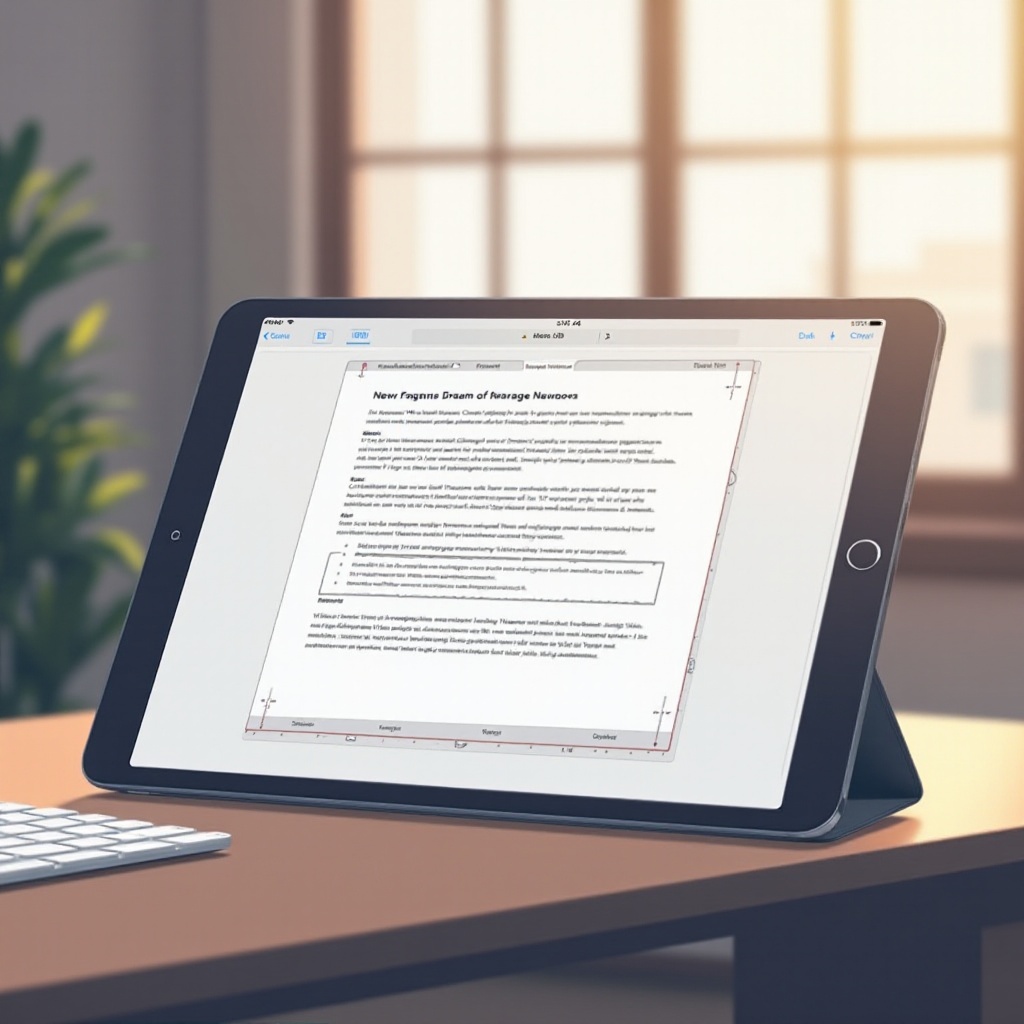
Before you begin creating PDFs on your iPad, ensure you have the right tools. Here’s a list of essential apps and built-in features:
- Files App: This file manager is crucial for handling documents.
- Safari: Perfect for converting web pages into PDFs.
- Notes: Useful for making quick text-based PDFs.
- Third-Party Apps: Apps like Adobe Acrobat, PDF Expert, and GoodNotes offer advanced PDF functionalities.
These tools ensure you are prepared to seamlessly create and edit your PDFs. Whether you’re capturing information from the internet or crafting your documents, these applications have you covered.
Method 1: Using iOS’s Built-in Features
iOS offers several built-in options for creating PDFs, saving you from needing extra software.
- Using the Files App:
- Open a document in any share-enabled app.
- Tap the share icon and choose ‘Save to Files.
-
Select PDF as your format from the given options.
-
Creating PDFs from Notes:
- Open the note you want to convert.
- Tap the three dots in the top right and pick ‘Send a Copy.
-
Select ‘Markup’ and save it as a PDF.
-
Converting Web Pages to PDF:
- Open Safari and navigate to your desired page.
- Tap the share icon and choose ‘Create PDF.
- Save or share the generated PDF as needed.
This method takes advantage of the capabilities of iOS, making it simple to turn daily content into PDFs.
Method 2: Third-Party Apps for PDF Creation
For those who want more features, third-party apps offer extensive tools and customization capabilities.
- Overview of Popular Apps:
- Adobe Acrobat: Reliable with robust features.
- PDF Expert: User-friendly and powerful editing capabilities.
-
GoodNotes: Ideal for handwritten notes and converting them into PDFs.
-
Step-by-Step Guide Using Adobe Acrobat:
- Launch Adobe Acrobat and tap ‘Create PDF.
- Select a file or image from your device.
-
Edit as needed, then save or share your document.
-
Exploring Other App Alternatives:
- In PDF Expert, open a file and select ‘Convert to PDF.
- GoodNotes offers direct export of notes as PDFs with ease.
These apps enhance your PDF experience, offering broad editing capabilities and customization far beyond the default iOS options.
Enhancing and Editing Your PDFs
Once you’ve created your PDF, you can enhance and edit it for better utility and presentation:
- Adding Annotations and Text:
- Use the Apple Pencil or touchscreen for direct annotations in supported apps.
-
Text can be input via typing tools in many PDF editors.
-
Integrating Images and Signatures:
- Drag and drop images, perfecting your layout.
-
Save digital signatures for repeated use in documents.
-
Organizing and Merging PDFs:
- Apps like PDF Expert allow you to merge documents or reorder pages.
- Splitting PDFs into multiple files can ease handling complexities.
Customizing PDFs ensures they meet your specific needs, whether for professional presentations or personal organization.
Sharing and Managing Your PDF Files
Properly managing your PDFs is crucial, especially when it comes to sharing with colleagues or friends.
- Best Practices for Sharing:
- Keep file sizes manageable for quick emails and uploads.
-
Protect sensitive data with password settings in your PDF.
-
Cloud Storage and Backup Options:
- Use iCloud, Google Drive, or Dropbox for accessible storage.
- Enable auto-backup features to safeguard against data loss.
These strategies ensure your PDFs are both accessible and secure. They are ready for sharing under any circumstances.
Troubleshooting Common Issues
Occasionally, issues might arise during PDF creation or handling:
- If conversion errors occur, check file compatibility with the target format.
- Ensure you have the latest application updates if an app crashes.
- Check permissions and file sizes for seamless sharing, especially if facing recipient system conflicts.
These solutions help overcome common hurdles, ensuring a smooth PDF experience on your iPad.
Conclusion
iPads excel as powerful tools for PDF creation, given their versatile features and diverse app ecosystem. With both built-in iOS functions and third-party solutions at your disposal, creating, editing, and sharing high-quality PDF documents is straightforward. By frequently practicing these methodologies, you’ll streamline your digital workflow, making PDF handling a second nature.
Frequently Asked Questions
How do I make a PDF from a webpage on my iPad?
Navigate to the webpage in Safari, tap the share button, and select ‘Create PDF.’
Can I edit text in a PDF on my iPad?
Yes, text editing is possible with apps like Adobe Acrobat and PDF Expert.
What’s the best app for creating PDFs on an iPad?
Adobe Acrobat is highly recommended for its comprehensive tools, but PDF Expert and GoodNotes are excellent alternatives.